

Frigate is a virtual NVR that you can self-host on your own computer.
You can add your IP cameras to Frigate and use it to manage your camera feeds and recordings. Most IP camera brands can work with Frigate through protocols like RTSP, and ONVIF may also be available for device discovery and configuration, depending on the camera. Keep in mind that Frigate is designed for IP cameras, not analog cameras directly. Analog cameras generally need a compatible video encoder or capture device to work with Frigate. If you’re not sure about the differences, check out my guide to [IP cameras vs. analog cameras].
With that out of the way, let’s get into the installation process. In the next few sections, I’ll walk you through how to install Frigate on Ubuntu.
Frigate Is Very Popular Among Security Camera Users in Europe, Including the United States
Frigate is a popular choice among home security enthusiasts because it gives them more control over their camera system than many traditional NVRs.
It supports local recording, AI-powered object detection, and integration with Home Assistant, so you can build a smart security system without relying on cloud services. Since Frigate is open source and self-hosted, you can run it on your own hardware, customize it to suit your needs, and avoid being locked into a specific camera brand or subscription plan. For users who want more flexibility and control over their home security setup, Frigate is a great alternative to a traditional NVR.
Frigate offers several advantages over a traditional NVR:
- Free and open source: No software license fees, and you can customize it to suit your needs.
- Local recording: Store your footage on your own hardware without relying on cloud storage.
- AI-powered detection: Identify people, vehicles, and other objects to help reduce unnecessary alerts.
- Home Assistant integration: Create smart home automations, such as turning on lights when someone approaches your property.
- Multi-brand camera support: Connect compatible IP cameras from different manufacturers instead of being locked into one brand.
- More privacy and control: Keep your footage and core security features under your control without depending on a manufacturer’s cloud service.
- Flexible setup: Choose your own hardware and configure the system to fit your needs.
Frigate is a great option if you want a flexible, locally managed security system with smart detection features and more control over your cameras and recordings.
Installing Ubuntu Desktop, Preparing to Install Frigate NVR
Frigate’s developers provide an official installation guide, but if you’re a beginner like me, you might find it a bit overwhelming at first. Don’t worry, though! I’ve created this guide specifically for beginners, with simple, step-by-step instructions and easy-to-understand explanations. You don’t need to be a Linux expert or have prior experience with Frigate to follow along. I’ll walk you through the installation process one step at a time, so you can get Frigate NVR up and running without the headache.
I’ll make this guide as simple and easy to follow as possible.
Don’t worry if you’re new to Frigate or Ubuntu! I’ve put together this guide to make the installation process as simple and straightforward as possible. I’ll walk you through each step using easy-to-follow instructions and plain English, so you can get Frigate NVR up and running without getting lost in complicated technical details. Just follow along, and we’ll take it one step at a time!
1. Download Ubuntu from the Official Website
Always download software from its official website whenever possible. For this guide, I downloaded Ubuntu directly from the official Ubuntu website to make sure I was getting a genuine copy from a trusted source, rather than a potentially modified version from an unknown third party.
Go to the official Ubuntu website to get started.
Next, I chose the Intel or AMD 64-bit version of Ubuntu for my computer.
Click the Download button.
The download should start shortly. The Ubuntu Desktop ISO is around 6 GB, so make sure you have a stable internet connection and enough time for the download to finish. A reliable connection will help prevent interruptions and reduce the chance of ending up with a corrupted file.
2. Installing Ubuntu on My PC
Here’s the PC I’m using for this Frigate NVR installation:
- PC: Dell OptiPlex 3060 Micro
- RAM: 8 GB
- Storage: 500 GB
- Processor: Intel Core i3-8100T @ 3.10 GHz
2.1. Create a Bootable USB Installer
Once the Ubuntu Desktop ISO has finished downloading, the next step is to create a bootable USB installer. I’ll use this USB drive to install Ubuntu on my PC. To create the installer, I’m using Rufus, a free and easy-to-use tool that lets you flash the Ubuntu ISO file onto a USB drive.
If you don’t have Rufus installed yet, you can download it for free from the official Rufus website.
Open Rufus to get started.
Click SELECT to open the file folder, then locate and select the Ubuntu .iso file you downloaded earlier.
Double-check that you’ve selected the correct USB drive, then click Start to create your bootable Ubuntu installer. Once the process begins, just sit back and wait for it to finish. There’s nothing else you need to do until it’s complete.
Important: This process will erase the data on your USB drive, so make sure you’ve backed up any important files before continuing.
2.2. Installing Ubuntu Desktop
Plug the bootable Ubuntu USB installer into your PC before turning it on.
Next, open the boot menu on your PC. On my Dell OptiPlex, I press F12 during startup to access the boot menu. Your PC may use a different key, depending on the manufacturer.
Select the option to boot from your USB drive. In my case, I selected my SanDisk USB drive from the boot menu.
Next, you’ll see the Ubuntu Desktop startup menu. Select Try or Install Ubuntu to continue.
Wait for Ubuntu to finish loading. This may take a few minutes, so just sit back and let it do its thing. Please excuse the quality of some of the images in this guide. I took them directly from my screen while installing Ubuntu, so some of them may not be as clear as I’d like. I hope they still help you follow along with the installation process.
Below are the steps I followed to install the latest version of Ubuntu Desktop on October 24, 2026.
Choose Your Language.

On the Accessibility screen, leave the default settings as they are and click Next to continue.

Select Your Keyboard Layout.

Connect to the Internet.

What Do You Want to do with Ubuntu?

How Would You Like to Install Ubuntu?

What Apps Would You Like to Install to Start With?

Install Recommended Proprietary Software?

How do You Want to Install Ubuntu?

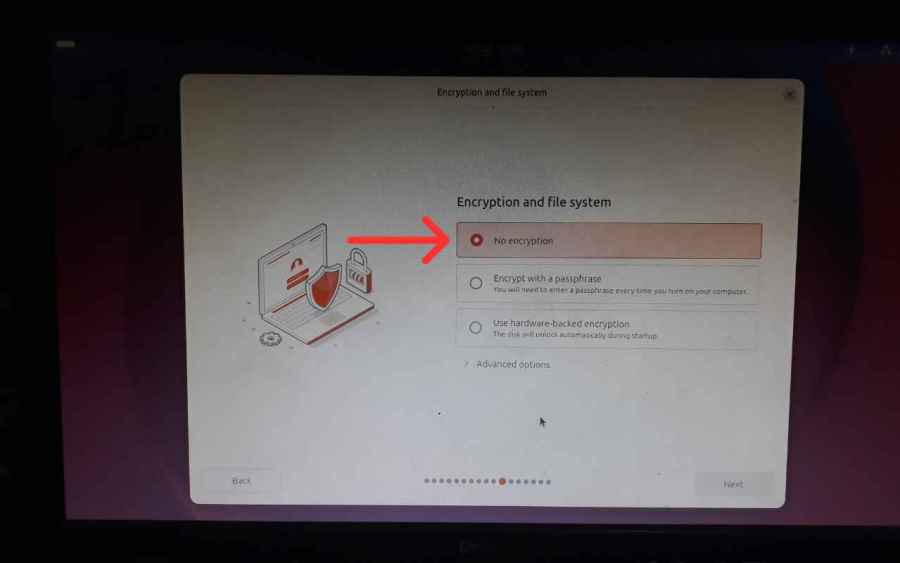
Ecryption and File System.
Crate Your Account:
- Your Name
- Your Computer’s Name
- Your Username
- Password
- Confirm Password
Check the Require My Password to Log In box to make sure you’ll need to enter your password each time you log in to Ubuntu.

Select Time Zone.

Click Install to continue with the Ubuntu Desktop installation.

Ubuntu Desktop will now begin installing. There’s nothing else you need to do for now, so just sit back and wait for the installation to finish. The whole process should take around 20 minutes, depending on your PC and USB drive.

Once the installation is complete, click Restart Now to reboot your PC and start using Ubuntu Desktop.

Installing Frigate NVR on Ubuntu Desktop—This Is My First Time Installing Frigate NVR
I’m using a Mac to set up Frigate NVR, so I’ll need a way to connect to my Ubuntu Desktop remotely. To do that, I’ll enable OpenSSH on Ubuntu first. Here’s how to set up SSH so I can access my Ubuntu PC from my Mac.
1. Enabling SSH on Ubuntu Desktop
Open the Terminal on your Ubuntu Desktop. You’ll use it to enter the commands needed to enable SSH.
Next, enter the following command in the Terminal:
sudo apt install openssh-server -ysudo systemctl enable ssh
sudo systemctl start ssh
Next, you’ll need to find your Ubuntu Desktop’s IP address so you can connect to it from your Mac’s Terminal.
Enter the following command in your Ubuntu Terminal:
ipconfigIf you see the error Command ‘ifconfig’ not found, don’t worry! It just means that net-tools isn’t installed on your system. You can install it by running the following command in your Ubuntu Terminal:
sudo apt update
sudo apt install net-tools
Now, run the “ifconfig” command in the Terminal again. You should see your network information, including your Ubuntu PC’s IP address.

To connect to your Ubuntu Desktop via SSH, open the Terminal on your Mac or Windows PC and enter the following command:
ssh username@192.168.1.102. Updating and Upgrading Ubuntu and Creating a Folder
Now we’re getting to the main part of this guide: installing Frigate NVR on Ubuntu! Before we get started, let’s update Ubuntu to make sure everything is up to date. Open the Terminal and run the following command:
sudo apt update && sudo apt upgrade -y
Next, I’ll create a directory for Frigate’s application data by running the following command in the Terminal:
mkdir -p Data/AppData/FrigateThis command creates the Frigate directory inside Data/AppData. If the parent directories don’t already exist, the -p option creates them automatically.
After that, I’ll open the folder using this command:
cd Data/AppData/Frigate
If the command runs successfully, your terminal prompt should look something like pstv@pstv: ~/Data/AppData/Frigate$, which means you’ve successfully navigated to the folder.
3. Installing Docker
Type cd ~ to return to your Ubuntu home directory.
Frigate NVR runs in Docker, so I’ll install Docker on Ubuntu first before setting up Frigate.
Docker is an open-source platform that lets you package, distribute, and run applications in isolated environments called containers.
You can do this by running the following command:
curl -fsSL https://get.docker.com -o get-docker.sh
sudo sh get-docker.sh
If you see a ‘curl’ not found error, you can install curl by running the following command in the terminal.
sudo apt update && sudo apt install curl
Once curl has been successfully installed, please enter the command curl -fsSL https://get.docker.com -o get-docker.sh in your terminal again.
Note: cURL (short for Client URL) is a command-line tool and software library used to transfer data to and from servers over various network protocols, including HTTP, HTTPS, and FTP, without the need for a graphical interface.
If there are no errors, proceed with the command sudo sh get-docker.sh.
This command will install Docker on your system. Wait for the process to finish. Once it’s complete, you should see output similar to this:
Client: Docker Engine - Community
Version:            29.9.2
API version:     1.56
Go version:      go1.26.10
Git commit:      a82e528
Built:                 Tue Oct 20 18:45:12 2026
OS/Arch:           linux/amd64
Context:           default

Server: Docker Engine - Community
Engine:
Version:           29.9.2
API version:     1.56 (minimum version 1.40)
Go version:      go1.26.10
Git commit:      0367cbe
Built:                 Tue Oct 20 18:45:12 2026
OS/Arch:          linux/amd64
Experimental:  false
containerd:
Version:            v2.4.2
GitCommit:       b7a25261e029d68978bbf290df0a62fc819b3c51
runc:
Version:            1.5.2
GitCommit:       v1.5.2-0-g29dd3dc2
docker-init:
Version:            0.19.0
GitCommit:       de40ad0
Adding Docker to your user account.
sudo usermod -aG docker $USERCheck the Docker version.
docker --versionRestart your PC.
sudo reboot4. Installing Frigate NVR
Setelah semuah proses persiapan selesai, ini waktuya saya untuk memasang Frigate NVR di Ubuntu. Pertama-tama saya akan mengakses folder yang sudah saya buat sebagai direktori untuk memasang Frigate NVR.
cd Data/AppData/Frigate
Then, run the following command:
nano docker-compose.ymlNote: The nano docker-compose.yml command opens, creates, or edits a configuration file named docker-compose.yml using the Nano text editor in the Linux terminal.
You can copy and paste the text below.
version: "3.9"
services:
  frigate:
    container_name: frigate
    privileged: true
    restart: unless-stopped
    image: ghcr.io/blakeblackshear/frigate:stable
    shm_size: "64mb"
    volumes:
      - /etc/localtime:/etc/localtime:ro
      - ./config:/config
      - ./storage:/media/frigate
      - type: tmpfs
        target: /tmp/cache
        tmpfs:
          size: 1000000000
    ports:
      - "5000:5000"      # Web UI
      - "8554:8554"      # RTSP feeds
      - "8555:8555/tcp"  # WebRTC
      - "8555:8555/udp"  # WebRTC
    environment:
      - FRIGATE_RTSP_PASSWORD=YourPassword
Replace Your Password with your own password. Then press Ctrl + X to exit Nano, press Y to save the file, and hit Enter to confirm the filename.
Once you’re done, run the following command from the folder where you saved your Frigate files to start the Docker containers on your system. This process takes about 20 minutes.
docker compose up -d
Once the image pulling process is complete, run the following command to check whether the Frigate Docker container is running.
docker psAs you can see, the container is now running and its status is Up.
Now you can try opening Frigate NVR in your web browser. I’m using a MacBook with Google Chrome, and I access Frigate NVR by entering the Ubuntu desktop’s IP address followed by the port number.
For example:
192.169.1.100:500And here’s the result. Frigate NVR is now successfully installed and running on Ubuntu Desktop.
At this point, Frigate NVR is up and running, and you can access it through your web browser. You can now start adding your own cameras to Frigate NVR. In the next guide, I’ll show you how to add a camera to Frigate NVR.
Final Thoughts
I managed to install Frigate NVR on my Ubuntu Desktop, even though I had my doubts at first and wasn’t sure I could pull it off.
However, after following the instructions on the official website, I was able to get Frigate NVR installed successfully. You can do the same on your Ubuntu system by following this guide. As long as you follow the steps carefully, I’m confident you can get it up and running, too.
I’m not a technical expert myself, but I managed to install Frigate NVR, and you can do it, too!
I hope you found this guide helpful! By the way, if you need help installing Frigate NVR on your PC, I’m happy to help. I can assist you in person if you’re nearby, or remotely through TeamViewer or AnyDesk if you’re in a different area.